
You can free up phone storage without immediately deleting important photos, documents, or messages. Videos, offline downloads, unused apps, caches, and old attachments often consume more space than expected.
Several storage-hungry items can be cleaned up without touching the photos, documents, or messages you want to keep.
1. Check What Uses Your Phone Storage
Before deleting anything, check your phone’s storage breakdown.
On an iPhone, follow Apple’s current storage guidance and go to Settings > General > iPhone Storage. Android users can follow Google’s storage guidance and usually find similar information under Settings > Storage, although menus can vary by device.
Look for categories taking up the most space. Apps, videos, photos, downloads, and cached data commonly appear near the top.
This simple check can prevent unnecessary deleting. If apps consume 20GB while your photos take up only 5GB, removing a few unused apps could solve the problem.
2. Remove or Archive Unused Apps
Old apps can quietly occupy hundreds of megabytes or several gigabytes.
Go through your installed apps and look for games, shopping apps, travel apps, editing tools, or other software you haven’t opened in months.
On iPhone, Offload App can remove the app itself while keeping its documents and data. You can reinstall the app later if needed.
Android phones also provide options for uninstalling unused apps, and some devices include automatic tools that identify apps you rarely use.
3. Clear Temporary App Caches
Apps can accumulate temporary files as you browse, stream videos, view images, or use social media.
Android phones commonly provide a Clear Cache option through an app’s storage settings. This removes temporary data rather than your personal files.
Be more careful on iPhone, where many apps don’t provide a direct cache-clearing button. In some cases, deleting and reinstalling an app may clear accumulated temporary data, but check whether the app stores anything locally before doing this.
4. Remove Unneeded Downloaded Files
Your Downloads folder can become a storage dump without you noticing.
Old PDFs, screenshots, ZIP files, presentations, duplicate documents, and images downloaded from websites may remain on your phone long after you needed them.
Open the Files app on iPhone or the file manager on Android and sort files by size. Large downloads make good candidates for removal, particularly when you already have a copy stored elsewhere.
5. Delete Offline Streaming Downloads
Music and video apps can consume huge amounts of storage when content gets downloaded for offline use.
Check services such as Netflix, YouTube, Spotify, podcast apps, and audiobook apps for downloaded content you no longer need. Removing offline media may also reduce background activity covered in these phone battery tips.
You don’t have to delete your account history or saved playlists. Removing only the offline copies can free up several gigabytes while leaving your online library intact. A reliable connection helps when streaming again, so check these common reasons Wi-Fi becomes slower.
6. Review Duplicate Photos Carefully
Photos don’t always need to disappear permanently to free up space.
Many modern phones can identify duplicate pictures, screenshots, blurry images, and similar photos. Review these suggestions carefully before deleting anything.
If you use cloud photo storage, check that your photos have successfully synced before removing local copies. On some services, deleting a photo from the device can also affect the cloud library depending on your settings.
7. Move Large Files to Safe Storage
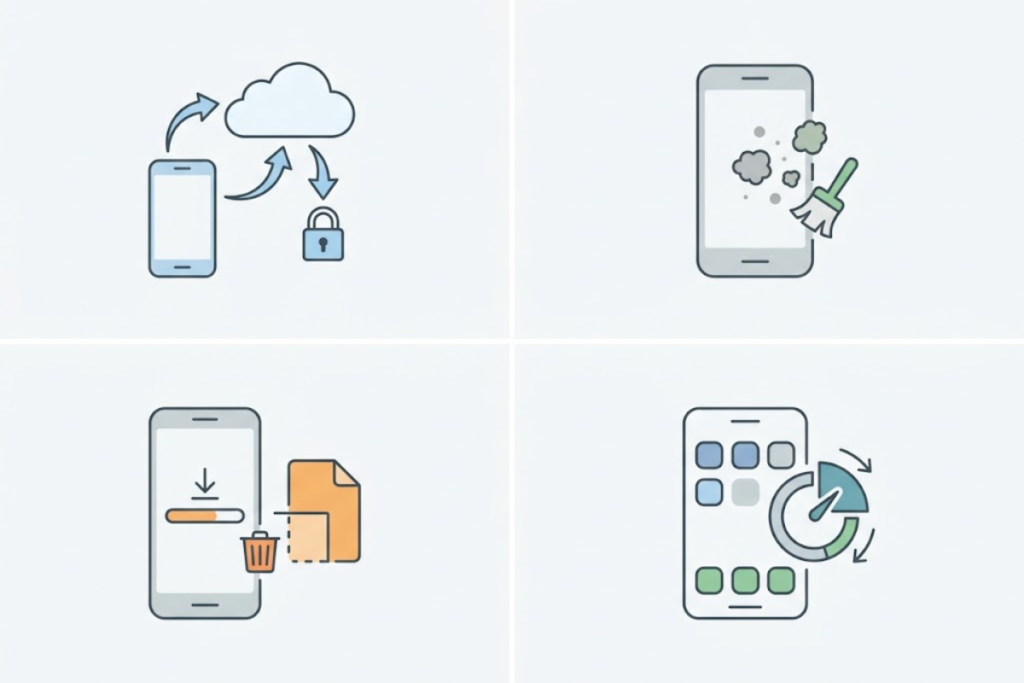
If your phone contains large videos or documents you want to keep, move them to a computer, external drive, or cloud storage. If the computer is also struggling, review these laptop performance tips.
Long 4K videos can take up several gigabytes on their own. Transferring older recordings elsewhere can free up substantial space without losing the files.
After transferring them, open a few files from the new location to confirm that the copies work before removing the originals from your phone.
8. Review Large Messaging Attachments
Text conversations can quietly collect years of photos, videos, GIFs, voice recordings, and documents.
Look through your messaging app’s storage settings to see which conversations or attachments consume the most space. You may be able to remove large attachments while keeping the conversations themselves.
Group chats can be particularly storage-heavy because media gets shared repeatedly over time.
9. Restart After You Free Up Phone Storage
Once you’ve removed temporary files, unused apps, downloads, and offline content, restart the phone.
Storage calculations sometimes take a little time to update. A restart can also clear certain temporary system data and give the device a chance to recalculate available space.
A few small changes can free up phone storage without sacrificing important files. Instead of deleting important memories or documents, start with forgotten downloads, unused apps, cached files, offline media, and duplicate content. That approach can recover storage while keeping the files you actually care about.


3 thoughts on “How to Free Up Storage on Your Phone Without Deleting Important Files”