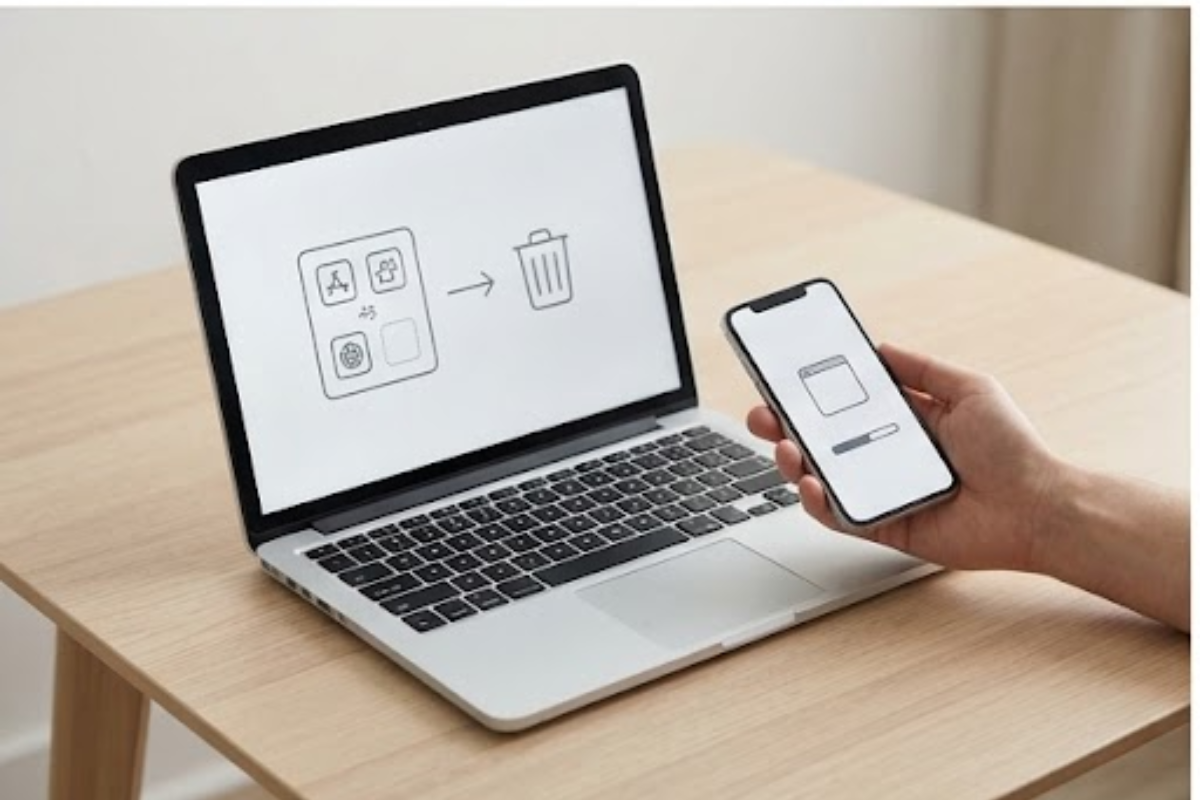
Slow laptop fixes often begin with storage, startup apps, software updates, browser tabs, heat, and memory use. A computer can lose responsiveness gradually even when its hardware has not failed.
The good news: a few maintenance habits can keep an older laptop running smoothly for much longer.
1. Keep Enough Storage Space Free
A nearly full drive can make everyday tasks slower, particularly when the operating system needs room for temporary files and updates.
Check how much free space remains on your laptop. On Windows, go to Settings > System > Storage. On a Mac, check System Settings > General > Storage.
Remove old downloads, unused installers, duplicate files, and applications you no longer need. The same approach can help you free up phone storage safely. Large video files and old backups can also consume surprising amounts of space.
Try to keep a reasonable amount of free storage rather than waiting until the drive turns red.
2. Uninstall Programs You No Longer Use
Over time, laptops collect applications that seemed useful at the time but rarely get opened. Some of these programs can run background processes or start automatically whenever you turn on the computer.
Review your installed applications every few months. On Windows, check Settings > Apps > Installed apps. Mac users can review applications through Finder.
Uninstall software you no longer use, particularly programs you don’t recognize or remember installing. When dealing with unfamiliar software, check what it does before removing it.
3. Disable Unnecessary Startup Apps
A long list of startup applications can make booting your laptop feel painfully slow.
Windows users can open Task Manager > Startup apps to see which programs launch automatically. Mac users can go to System Settings > General > Login Items & Extensions.
Disable automatic startup for applications you don’t need immediately after signing in. Messaging apps, game launchers, cloud tools, and update utilities can often wait until you actually need them.
4. Reduce Browser Tabs and Extensions
Web browsers can consume substantial memory when dozens of tabs and extensions remain open.
Close tabs you’re finished with and remove browser extensions you rarely use. If your browser has accumulated a large amount of cached data, clearing unnecessary browsing data can also help.
If web pages remain slow after reducing tabs, the connection may be involved; review why Wi-Fi slows down at certain times.
5. Install Operating-System Updates
Operating system updates can include performance improvements, bug fixes, security patches, and hardware compatibility updates.
Install Windows or macOS updates when they’re available rather than repeatedly postponing them. Also check for driver updates on Windows, particularly after installing new hardware or experiencing unusual performance problems.
Don’t rely on random driver-update programs, though. Download drivers through your laptop manufacturer’s website or the relevant hardware manufacturer’s official source.
6. Prevent Heat From Slowing the Laptop
Heat can affect performance. When internal temperatures rise, many laptops automatically reduce processor speeds to control heat.
Avoid using the laptop on blankets, beds, or other soft surfaces that can block ventilation. A desk or other hard surface gives air vents more room to breathe.
If the fan constantly runs loudly or the laptop becomes unusually hot during ordinary tasks, dust buildup could be restricting airflow. Cleaning accessible vents can help. Internal cleaning may require more care, especially on thin laptops.
7. Check Memory and Background Usage
If your laptop frequently struggles when several applications run together, limited RAM could be the problem.
Open Task Manager on Windows and check the Memory section while you’re using the laptop normally. Mac users can use Activity Monitor to see memory pressure and review Apple’s guidance for a slow Mac.
If memory usage stays high, closing unnecessary programs can provide an immediate improvement. On some laptops, upgrading RAM may also help, although many modern thin laptops have memory soldered to the motherboard.
8. Consider an SSD Upgrade
If your laptop still uses a traditional hard disk drive, replacing it with an SSD can make a noticeable difference in everyday responsiveness.
Booting, opening applications, searching through files, and transferring data can all feel much faster with an SSD. Before buying one, check whether your laptop supports an upgrade and which drive format it requires.
For older machines, an SSD upgrade can sometimes make more sense than replacing the entire laptop.
9. Restart to Clear Temporary Processes
Putting a laptop to sleep repeatedly without ever restarting it can leave background processes, memory usage, and temporary system activity accumulating.
A restart clears many of these processes and gives the operating system a fresh session. If your laptop has started behaving strangely or slowing down for no obvious reason, restarting can be a simple first step.
10. Make Slow Laptop Fixes a Monthly Habit
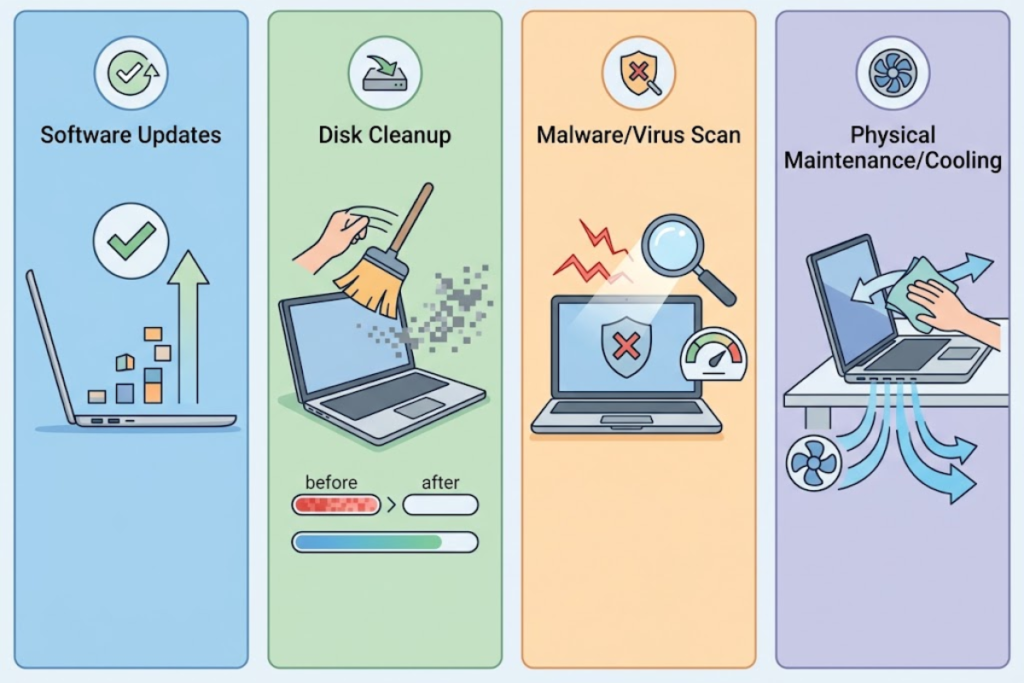
You don’t need to spend hours maintaining your computer. Once a month, check storage space, remove unused applications, review startup programs, clean the vents, and install pending updates.
These slow laptop fixes can prevent minor performance problems from piling up. If the laptop remains sluggish after cleaning up software and storage, hardware limitations, battery problems, overheating, or an aging drive may need closer attention. Similar maintenance can also help extend phone battery life.



2 thoughts on “How to Stop Your Laptop From Slowing Down Over Time”